Installing mods with a mod manager
You can use any mod manager that supports Thunderstore. Here are the most popular ones:
For this guide we will use r2modman, but steps should be the same for other ones.
Installing a mod manager
Go to a download page of your selected mod manager and follow the instructions.
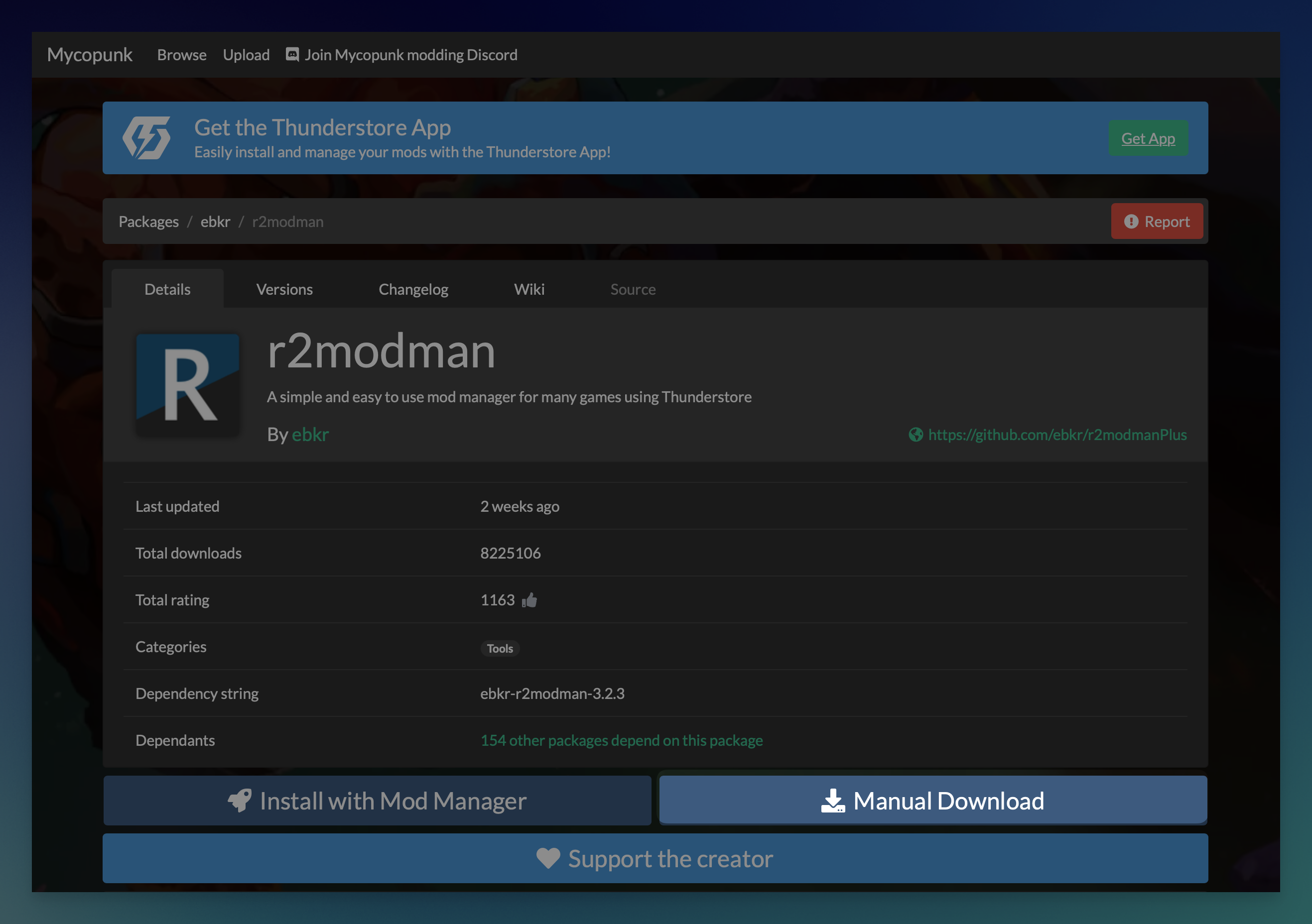
In case of Gale and r2modman, all you have to do is press Manual Download and follow the installer instructions.
Installing mods
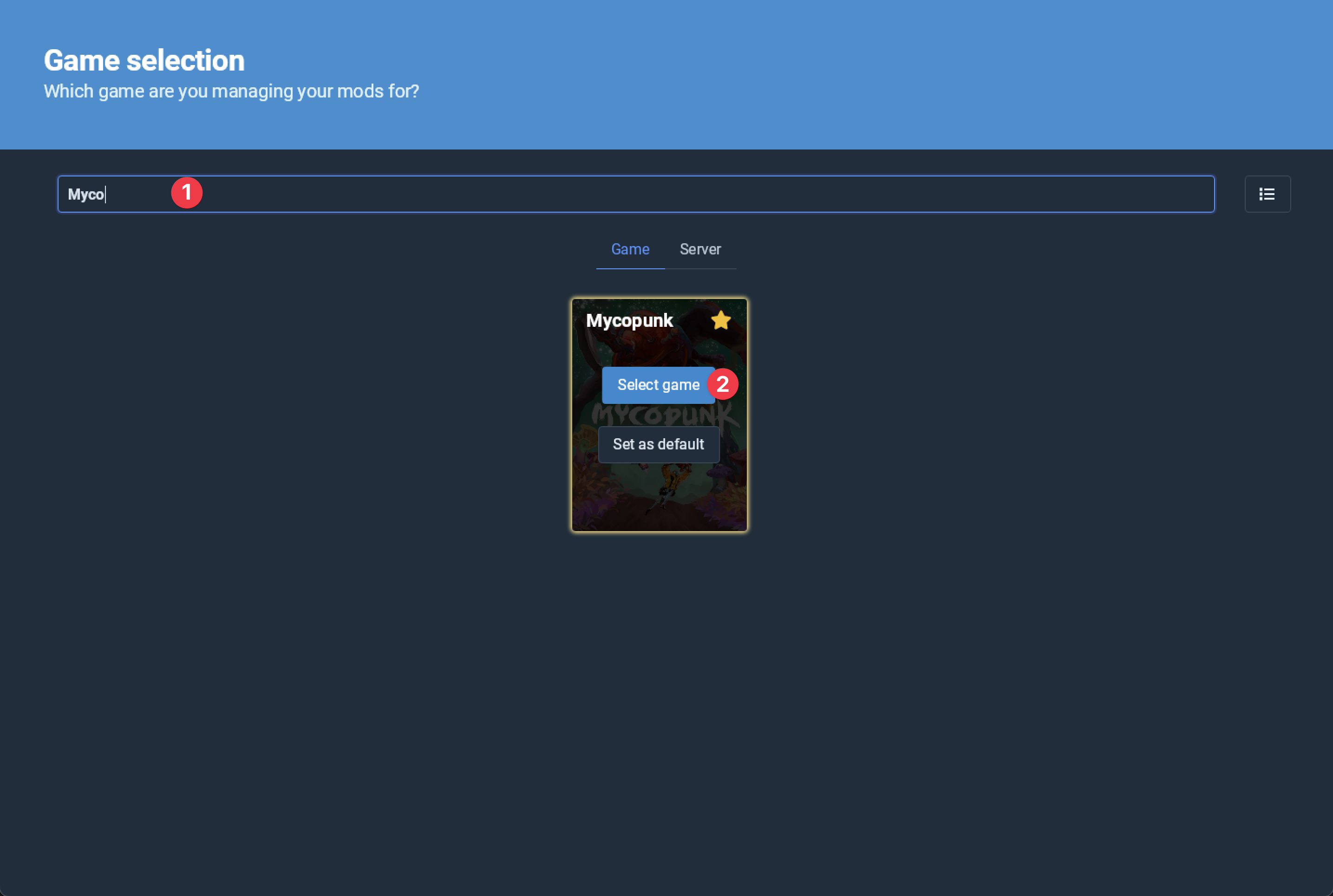
Before installing mods you first have to select the game you want to install mods for.
To do so, just type Mycopunk in the search bar, while hovering over the card you can add the game to favorites (star in top right) so it's easier to select next time, now you can click Select game which will show you the next screen.
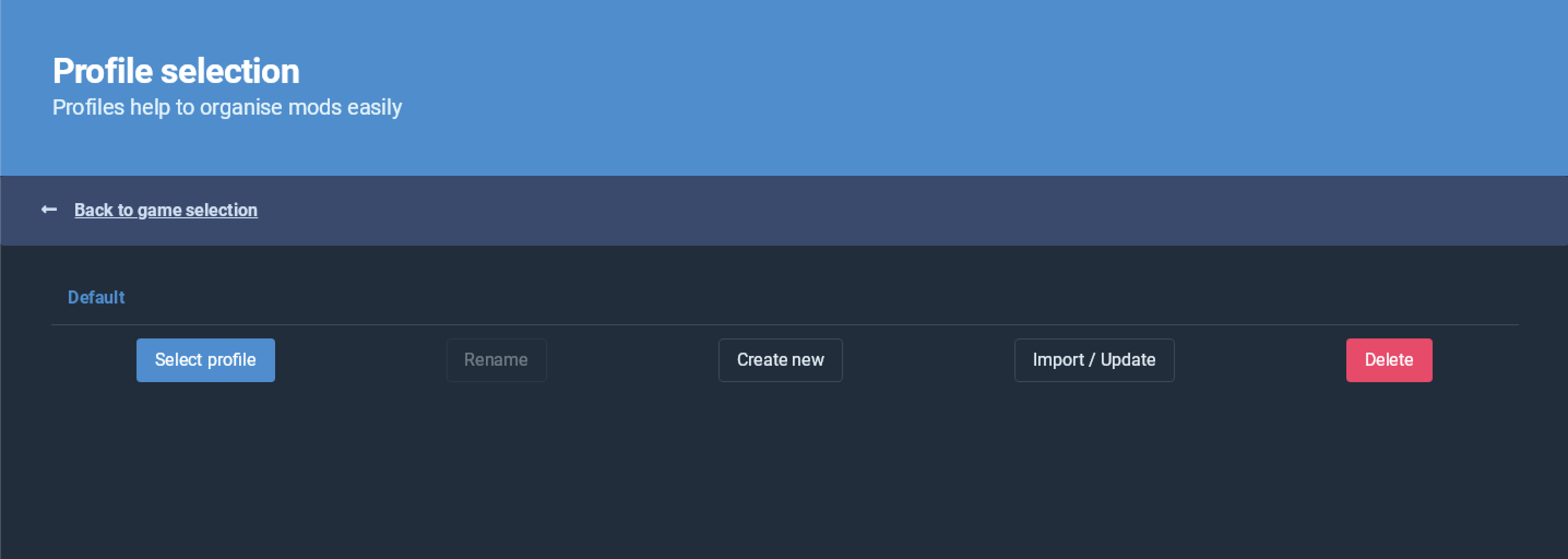
When asked about which profile to use, go with Select profile for now.
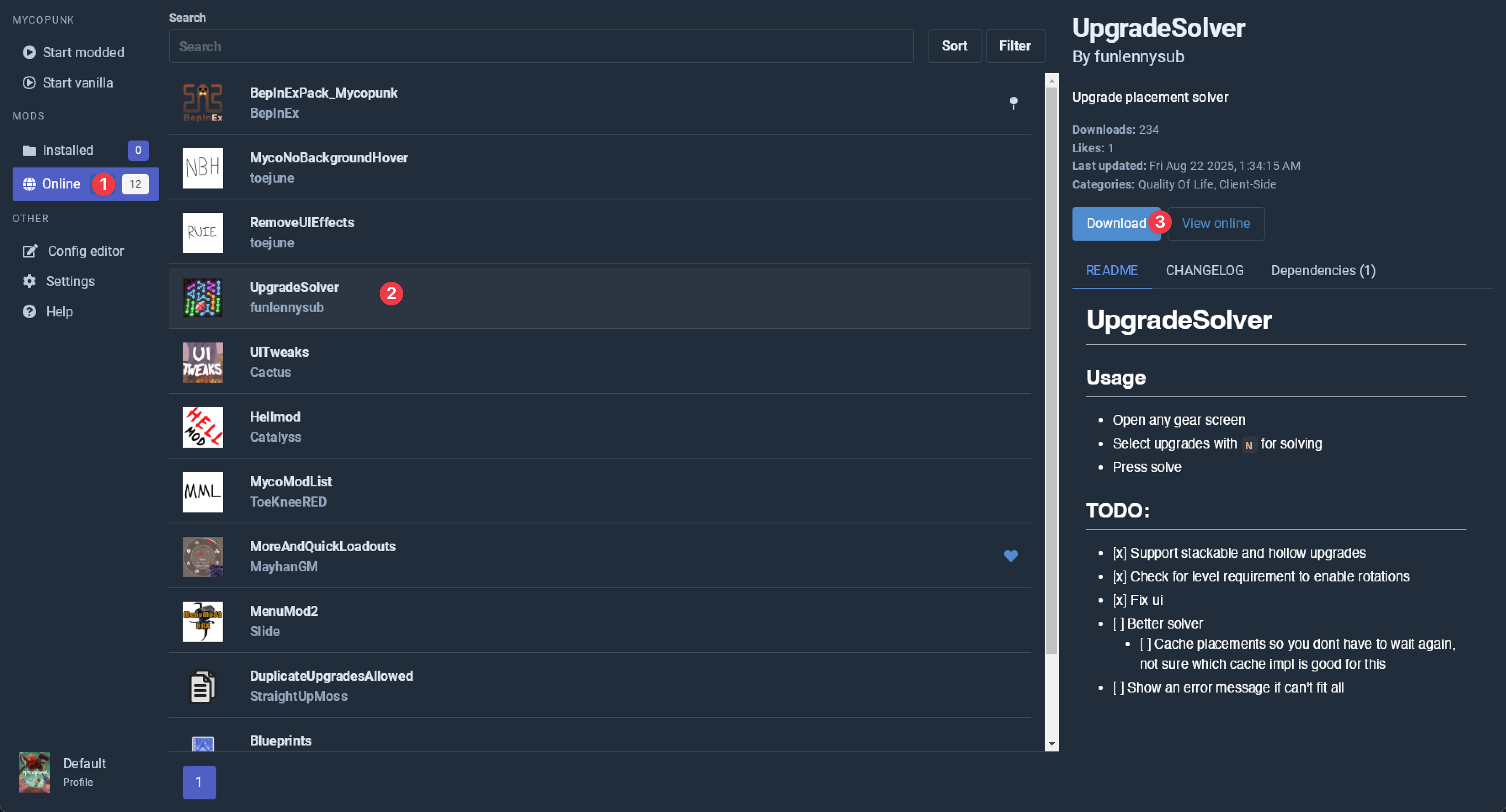
After selecting a profile, you now can go to Online tab and select a mod you want and press Download.
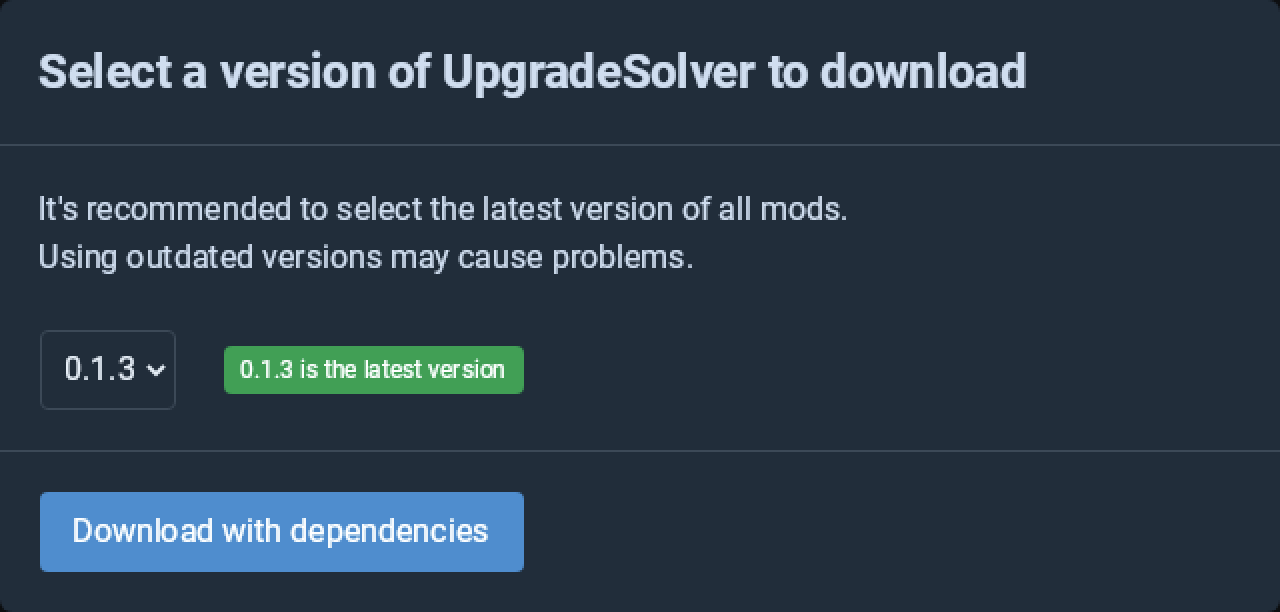
Next press Download with dependencies and it should start downloading the mod you selected.
Playing with mods
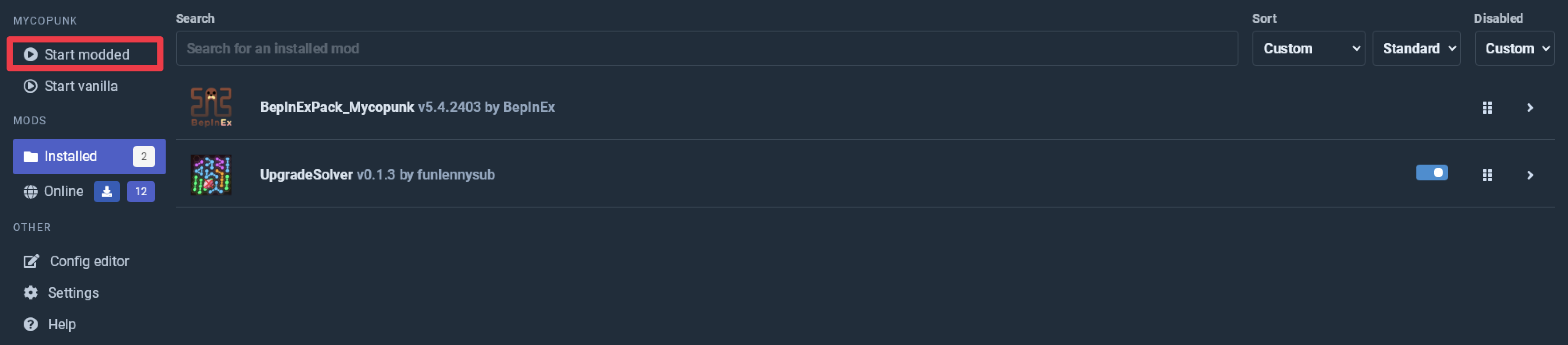
After you done installing mods you want, in order to launch the game with mods, you have to use Start modded button in top left.
If the game does not launch, check BepInEx/LogOutput.log and ask for help in the Mycopunk Discord.